ComfyUITemplates.com

Discover free ready-made ComfyUI templates for AI workflows.

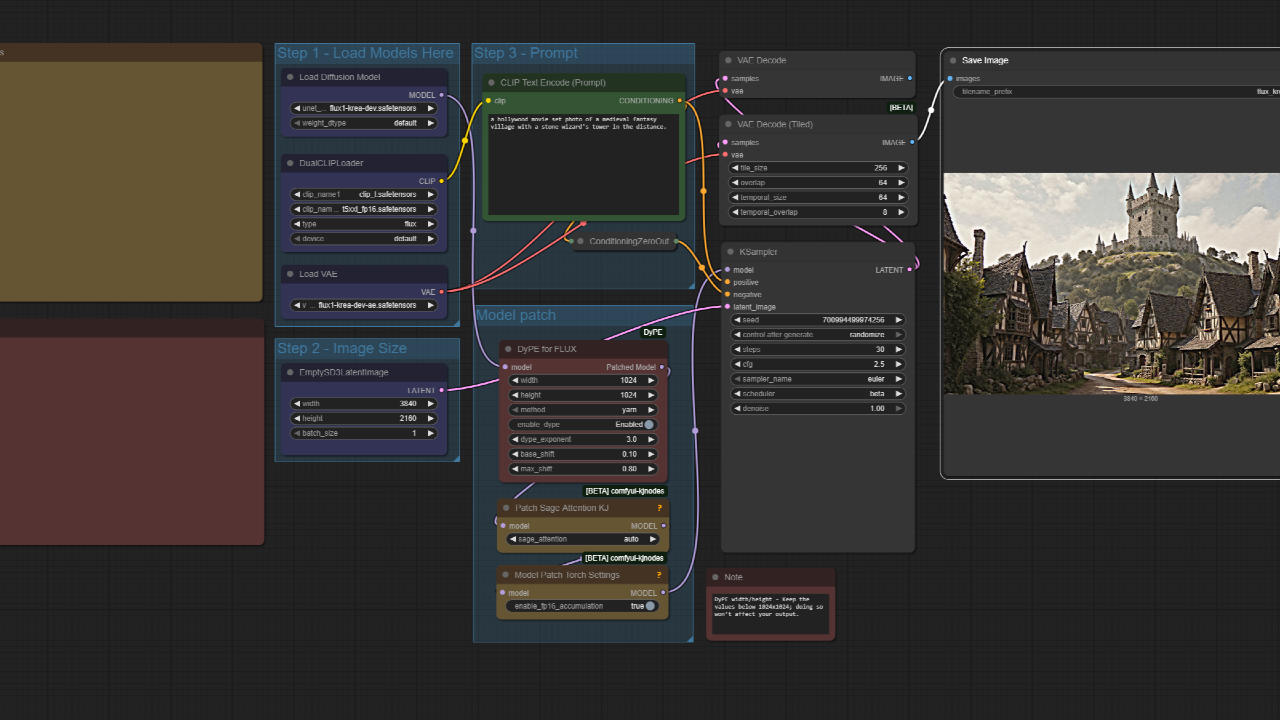
Flux with DyPE for Native 4K+ Image Generation

Flux with DyPE for Native 4K+ Image Generation

ComfyUI Workflow: Flux with DyPE for Native 4K Image Generation This ComfyUI workflow utilizes the DyPE node to **generate artifact-free, high-resolution images natively**, specifically designed for FLUX models. It allows for the creation of crisp 4K and higher resolution outputs by directly patching the UNet, ensuring superior quality. **What makes Flux with DyPE special** - **Native 4K+ output**: Achieve resolutions of 4K and beyond without relying on traditional upscaling methods. - **Optimized for FLUX models**: Engineered to work seamlessly with FLUX models, enhancing their generation capabilities. - **Direct UNet patching**: DyPE directly patches the UNet for improved image fidelity and stability at high resolutions. - **Dynamic positioning control**: The `enable_dype` toggle offers advanced control over element placement and composition within the high-resolution canvas. **How it works** - **DyPE node integration**: The core DyPE node is integrated into your workflow, managing the high-resolution generation process. - **Parameter tuning**: Fine-tune the `dype_exponent` (2.0 is ideal for 4K+) and select a `method` (yarn recommended) to guide the generation. - **Seamless KSampler connection**: The DyPE node's `MODEL` output directly feeds into your `KSampler` node for integrated high-resolution inference. **Quick start in ComfyUI** - **Set matching resolutions**: Adjust the `width` and `height` parameters on the DyPE node to correspond with the resolution in your `Empty Latent Image` node. - **Configure DyPE parameters**: Select your preferred `method` (yarn is a good starting point), enable or disable `dynamic positioning` using the `enable_dype` toggle, and set `dype_exponent` to 2.0 for 4K output. - **Connect and generate**: Connect the `MODEL` output from the DyPE node to your `KSampler` node's input, then start your workflow. **Recommended settings** - **DyPE exponent**: A value of 2.0 is recommended for robust 4K and higher resolution outputs. - **Generation method**: The 'yarn' method often yields optimal results for high-resolution image generation. - **Initial resolution guidelines**: Keep `width` and `height` parameters below 1024x1024 unless you are using the most current, bug-fixed version of DyPE. **Pro tips** - **Experiment with values**: Adjust `dype_exponent` and `method` to find the best quality for your specific resolution targets and image content. - **FLUX model focus**: Remember that DyPE is specifically designed for FLUX models and only patches the UNet, ensuring focused enhancement. **Why use this workflow** - **Superior image quality**: Generate stunning, artifact-free images at native high resolutions. - **Efficient high-res output**: Streamline your workflow for 4K+ outputs without complex post-processing steps. - **Dedicated FLUX enhancement**: Leverage a tool specifically built to maximize the potential of FLUX models for detailed imagery. **Conclusion** The Flux with DyPE workflow enables ComfyUI users to achieve **native 4K+ image generation** with FLUX models, providing artifact-free, high-fidelity outputs through direct UNet patching and configurable parameters.

Text to Image
Screenshot of the ComfyUI  workflow Wan2.2: Ultimate Text To Image (fast render, cinematic quality)

Wan2.2: Ultimate Text To Image (fast render, cinematic quality)

ComfyUI Workflow: Wan2.2: Ultimate Text To Image (fast render, cinematic quality) This ComfyUI workflow harnesses the robust capabilities of WAN 2.2, a system known for realistic video generation, to create high-quality static images. It produces a batch of images from a given text prompt, utilizing the same models and methods employed for WAN 2.2 videos. The result is crisp, prompt-following, and highly realistic images. What makes Wan2.2 special - **Cinematic realism**: Generates images with a realistic aesthetic, trained on real TV and movie footage for an authentic look. - **Prompt adherence**: Creates images that accurately follow the provided text descriptions. - **Batch generation**: Efficiently produces multiple images in a single processing run. - **Authentic visual quality**: Avoids the "over-filtered" appearance often associated with social media-trained models. - **Fast rendering**: Delivers quick image outputs while maintaining high visual fidelity. How it works - The workflow applies the foundational models and methods of WAN 2.2 video generation to the task of creating still images. - It interprets a text prompt to synthesize and render a collection of images. Why use this workflow - Achieve exceptionally realistic and film-like image outputs. - Generate visuals that precisely match your textual creative brief. - Rapidly produce multiple image variations or options for any concept. - Benefit from a training foundation that prioritizes genuine visual representation.

Text to Image
Image of the ComfyUI workflow for background removal. This template uses the FLUX model and BRIAAI Matting for precise, automated cutouts.

WAN2.2 IMAGE TO VIDEO ( ULTRA SMOOTH HD )

ComfyUI Workflow: WAN 2.2 Image to Video Ultra Smooth HD The WAN 2.2 Ultra Smooth HD Image-to-Video Workflow in ComfyUI uses a refined WAN 2.2 merge model to create cinematic-quality videos from a single image. It focuses on exceptional motion accuracy, realism, and prompt fidelity. This advanced workflow is optimized for better prompt following, enhanced motion physics, and faster generation times, delivering both speed and high-quality output. What makes WAN 2.2 special * **Cinematic-quality video output**: Generates stunning HD videos with natural, lifelike motion. * **Improved prompt adherence**: Accurately interprets prompts to match your creative direction. * **Optimized performance**: Achieves faster render times with improved efficiency. * **Advanced motion physics**: Produces smooth transitions and realistic movement from a single frame. * **Under continuous refinement**: Further updates are in development to reduce generation time even more. How it works * **Refined WAN 2.2 merge model**: Employs an optimized model designed for high-quality image-to-video conversion. * **Single image input**: Processes one source image to generate a dynamic video sequence. * **Prompt-driven motion**: Guides video content and motion based on user prompts. Quick start in ComfyUI * **Load workflow**: Open the WAN 2.2 Image to Video graph in ComfyUI. * **Upload image**: Provide your source image. * **Enter prompt**: Input your desired prompt. * **Generate**: Run inference to produce your smooth, HD cinematic video. Why use this workflow * **High-quality output**: Delivers cinematic videos with outstanding motion accuracy and visual fidelity. * **Efficiency**: Benefits from optimized performance for faster generation without compromising quality. * **Creative control**: Improved prompt following offers greater control over the final video's direction. * **Ease of use**: Convert static images into dynamic videos with simple inputs. Use cases * **AI video creators and visual storytellers**: For generating compelling video content. * **Character and concept animations**: Bringing animated versions of designs to life. * **Cinematic sequences from still imagery**: Creating dynamic clips for various projects. Conclusion The WAN 2.2 Image to Video workflow offers **next-generation motion generation** within ComfyUI, seamlessly combining speed, realism, and cinematic precision to transform static images into dynamic, high-definition videos.

Video Generation
Screenshot of the ComfyUI promptless style transfer workflow. This template uses the Florence-2 model to apply any artistic style to an image without writing a single prompt.

Wan Animate Pose transfer + Replace Simple and Fast workflow - Lighting Lora and Multi Lora Loader

ComfyUI Workflow: Wan Animate for Flexible Pose Transfer and Video Character Replacement Wan Animate is a versatile ComfyUI workflow enabling **pose transfer from videos to static images** and **direct character replacement within videos**. It offers a straightforward approach to animating images or re-imagining video content, integrating advanced models and robust control over video processing and mask generation. **What makes Wan Animate special** - **Dual Functionality**: Seamlessly animate a static image with a video's motion or replace a character in a video. - **Optimized Performance**: Utilizes the FP8 version of Animate for efficient processing, along with specific models like umt5_xxl_fp8, Clip ViT H, and Wan 2.1 Vae. - **Multi-Lora Support**: Integrate multiple LORAs using the Power Lora Loader, pre-configured with Lightx2v and Wan Relight for enhanced output. - **Precise Pose Extraction**: Employs two DWPose Estimators for detailed face, body, and hand pose estimation from video sources. - **Intuitive Masking (Replace Workflow)**: Define character masks on the first video frame using a points editor for targeted replacement, supported by Sam2 with configurable grow and blockify options. **How it works** - **Pose Transfer Mode**: Load an image and a reference video. The video's pose is extracted via DWPose, then applied to your image through the WanAnimateToVideo sampler and KSampler to generate an animated output. - **Character Replacement Mode**: Input a video and an image of the desired character. After initial pose processing, you define a mask on the first video frame to isolate the character to be replaced. Sam2 generates the mask, which guides the sampler to integrate your new character into the video. - **Video Pre-processing**: Videos are loaded, resized, and can have their FPS adjusted and end frames capped for precise control. - **Sampling and Output**: The WanAnimateToVideo sampler manages motion coherence, especially for longer videos, while KSampler handles frame generation. Output videos are combined at the source FPS and then interpolated to 32fps by default. **Quick start in ComfyUI** - **Load Image**: Connect your input image to the designated node. - **Load Video**: Upload your reference video, adjusting FPS or capping frames as needed. - **Prompts**: Enter your positive prompt. A negative prompt is generally not required if using Lightx2v. - **Pose Transfer**: Run the workflow to animate your image with the video's motion. - **Character Replace**: For replacement, initiate the workflow to process the video, then pause at the points editor. Define your mask (green for positive, red for negative areas) and resume to generate the masked video. **Recommended settings** - **Video Dimensions**: Resize inputs to a multiple of 16 for optimal Animate model performance. - **FPS**: Start with 16 fps for general videos. Experiment with 21 fps if finer motion is desired. - **Sampling**: "Continue motion" in WanAnimateToVideo can improve long video consistency. - **Replace Masking**: Use shift + left click for positive mask points (what to replace) and shift + right click for negative points (what to exclude). - **Sam2 Masking**: Adjust 'Growmask' to expand the mask coverage and 'Blockify Mask' size (default 16) for different mask styles. Blocking can be toggled off with ctrl + b. **Why use this workflow** - **Efficient Motion Creation**: Quickly animate still images with dynamic video poses. - **Targeted Character Swaps**: Replace specific characters in videos with controlled masking. - **Advanced Model Integration**: Leverages state-of-the-art Wan Animate models for high-quality results. - **Flexible Control**: Offers fine-tuning options for video processing, LORA application, and masking parameters. - **Streamlined Process**: Once pose estimates are cached, subsequent runs for the same video are significantly faster. **Use cases** - **Animation Prototyping**: Rapidly animate character concepts from still images. - **Video Content Customization**: Replace actors or characters in existing video footage. - **Creative Video Editing**: Experiment with different characters in a scene without reshooting. - **Digital Character Development**: Visualize how new characters move within various video contexts. **Pro tips** - **First Frame Masking**: For the replace workflow, precisely mask the first frame of your video. The pose estimators do not re-estimate if dimensions remain consistent, saving time on subsequent runs. - **Pose Cache**: The initial pose estimation takes the longest. Keeping video dimensions consistent allows the workflow to reuse prior estimations, speeding up iterations. - **Lora Management**: Utilize the Power Lora Loader to experiment with different lighting or style LORAs. - **FPS Experimentation**: While 16 fps is a good starting point, test 21 fps for videos with subtle or fast movements if needed. **FAQ** - **Do I need specific hardware**: The FP8 models and general ComfyUI requirements apply. Performance will depend on your GPU. - **Can I use custom LORAs**: Yes, the Power Lora Loader allows you to load multiple custom LORAs. - **How long does a video take to process**: Initial pose estimation can take 2-3 minutes for a new video. Subsequent masking and sampling runs for the same video are much faster. - **Is the replacement workflow always perfect**: The replacement workflow is noted as somewhat experimental and might require fine-tuning for optimal quality compared to the basic pose transfer.

Video Generation
Screenshot of the ComfyUI workflow for animating any image into a Ghibli-style video. This template transforms a static photo into a living scene with the iconic Miyazaki aesthetic.

WAN 2.2 Text-to-Video

ComfyUI Workflow: WAN 2.2 Text-to-Video V2 Fast Workflow The **WAN 2.2 Text-to-Video V2 Fast Workflow** is an upgraded ComfyUI solution designed to generate **cinematic HD-quality videos** from a simple text prompt. This V2 edition introduces **prompt extension capabilities** and **enhanced color grading** for more vivid, high-contrast visuals. Built for **speed and quality**, it leverages WAN 2.2’s advanced motion rendering and smarter prompt handling to interpret creative ideas with greater detail, depth, and visual richness. What makes WAN 2.2 V2 special - **Prompt Extension System**: Expands your prompt intelligently for richer, more dynamic scene generation. - **Better Colors & Brightness**: Delivers improved color grading, contrast, and visual vibrancy for cinematic impact. - **Fast Rendering**: Features an optimized pipeline for quick turnaround without sacrificing detail. - **Text-to-Video Simplicity**: Input a prompt to get a smooth, cinematic video in HD. - **Enhanced Visual Depth**: Offers balanced tones, richer colors, and improved brightness. - **High-Speed Generation**: Creates professional-quality outputs in minimal time. How to get started in ComfyUI - Provide a text prompt describing your desired video. - The workflow processes the prompt to generate a cinematic HD video. Recommended settings - For best results, ULTRA PRO is recommended. - Adjust shift values if necessary for fine-tuning. - Test with other style and character loras to explore diverse visual styles. Why use this workflow - **Faster creative output**: Quickly generate AI-powered videos from text. - **Visually rich content**: Achieve more vibrant, high-contrast, and detailed cinematic visuals. - **Simplified workflow**: Create professional-quality video content with ease. Use cases - Rapid prototyping for video concepts. - Generating stylized or cinematic short clips. - Creating engaging visual content for various platforms. Conclusion The **WAN 2.2 Text-to-Video V2 Fast Workflow** offers a streamlined, high-quality method within ComfyUI for generating faster, richer, and more vibrant AI-generated videos, featuring enhanced visual depth and intelligent prompt handling.

Video Generation
Screenshot of the ComfyUI workflow for turning photos into Ghibli-style anime. This template uses a LoRA to capture the enchanting, hand-painted aesthetic of Hayao Miyazaki.

Wan 2.2 Light2X Image-to-Video

ComfyUI Workflow: Wan 2.2 Light2X Image-to-Video This ComfyUI workflow utilizes Wan 2.2 and the Light2X Lora to efficiently generate video from images. It focuses on rapid production and flexible output, enabling users to create dynamic clips with optimized performance. What makes this workflow efficient * **Fast Generation**: Produce videos in as few as 4 steps, significantly reducing processing time. * **Multi-Dimensional Output**: Supports various video resolutions including 480p, 720p, and custom sizes. * **High Frame Rate**: Generates 32 frames per second videos directly through integrated interpolation using FILM VFI. * **Optimized Model Loading**: Employs FP8 models to accelerate the generation process, leading directly to sampling. * **Streamlined Lora Management**: The RGTHREE Power Lora Loader allows for loading multiple loras without requiring numerous nodes. Generation speed highlights * A 5-second 480x832 video can be generated in approximately 1 minute 10 seconds after an initial run. * A 5-second 720x1280 video can be generated in about 3 minutes 30 seconds after an initial run. * This efficiency supports generating multiple short videos quickly. How to use this workflow * **Model Loading**: The workflow uses both High noise and Low noise Wan 2.2 models. FP8 models are advised for faster processing. * **Lora Integration**: Use the RGTHREE Power Lora Loader. Set the high_noise_model loader at strength 2 and the low_noise_model loader at strength 1. For other loras, load the same lora file into both loaders, with the first loader at double strength. * **VAE and Clip**: Always use the Wan 2.1 VAE. FP8 is recommended for Clip for balance between speed and quality. * **Image and Prompt**: Load your source image and select desired output dimensions. Input your text prompt and specify video length (e.g., 81 frames for 5 seconds, 160 frames for 10 seconds). * **Sampling**: Two KSamplers are utilized, one for each noise model. Light2X enables generation in just 4 steps. Euler / Simple or Euler / beta are recommended samplers. Keep CFG at 1 to maintain quality and avoid artifacts. * **Video Assembly**: The initial video output is at 16fps, which is then interpolated by FILM VFI to achieve a final 32fps video. Lora usage guidance * Wan 2.2 Loras are highly recommended, requiring both High and Low noise models from their respective Civitai pages. * Wan 2.1 Loras are compatible. Load the same lora file in both loaders, with the first (High noise) loader set at double the strength of the second. This workflow offers a streamlined and efficient method for creating high-quality, high-framerate videos from images within ComfyUI.

Video Generation
ComfyUI workflow for 2x video upscaling using RealESRGAN, with instructions to check logs for progress and expect a long processing time.

Video Upscale RealESRGAN x2

ComfyUI Workflow: Video Upscale RealESRGAN x2 This ComfyUI workflow is designed to **upscale your videos by a factor of two** using the RealESRGAN model. It processes your input video to enhance its resolution, resulting in a clearer and more detailed output. **How it works** - The workflow systematically applies the RealESRGAN algorithm to frames of your video, increasing their dimensions by x2. - These enhanced frames are then reassembled to produce a new, higher-resolution video file. **Quick start in ComfyUI** - **Inputs**: Connect your source video file to the appropriate input node within the workflow graph. - **Execute**: Run the workflow to initiate the video upscaling process. **Important considerations** - **Progress monitoring**: You can monitor the workflow's progress by checking the log in ComfyUI. - **Processing duration**: Video upscaling, particularly for longer or higher-resolution content, requires significant processing time. The final video output will be available after this duration. **Why use this workflow** - **Resolution improvement**: Effectively double the resolution of your videos, enhancing visual fidelity. - **RealESRGAN quality**: Utilize the advanced capabilities of RealESRGAN for superior upscaling results. **Conclusion** This ComfyUI workflow provides a direct approach to **upscale videos x2 with RealESRGAN**, offering improved clarity and detail, with progress insights available via the log.

Video Upscaling
ComfyUI workflow for ultra-fast, high-quality 2x and 4x video upscaling, enhancing resolution and detail for sharper, clearer, and more refined video output.

ULTRA-FAST VIDEO UPSCALE WORKFLOW - HIGH QUALITY RESULTS IN SECONDS

ComfyUI Workflow: Ultra-Fast Video Upscale This ComfyUI workflow offers an ultra-fast solution for upscaling videos, providing visibly sharper and more refined results with a straightforward process. It is designed to enhance video resolution and detail while preserving natural motion. Key Features - **High-Quality Upscaling**: Supports 2x and 4x video upscale, improving both resolution and intricate details. - **Ultra-Fast Processing**: Optimized for speed, delivering enhanced video output in minimal time without compromising quality. - **Simple Upload & Go**: Users can upload their video and queue the process to receive a professionally upscaled output. - **Compatible & Customizable**: Works with most standard video inputs and allows for internal setting adjustments for custom refinement. How to use - **Input**: Upload your video file into the workflow. - **Process**: Initiate the queue in ComfyUI. - **Output**: Receive the upscaled video. - **Consideration**: Upscaling time depends on video length and the chosen upscale model. - **Guidance**: Further instructions are included within the workflow's internal notes. Ideal for - Content creators enhancing videos for platforms like YouTube, Instagram, or short-form content. - Filmmakers and animators upscaling AI-generated or archived footage. - Any user desiring improved clarity and resolution for their video content. Why use this workflow - **Efficiency**: Provides high-quality video enhancements quickly. - **Simplicity**: Features a streamlined process from upload to output. - **Clarity**: Delivers significant improvements in video sharpness and detail.

Video Upscaling
ComfyUI workflow for SeedVR2, a one-step diffusion-based model for high-resolution video upscaling and restoration, utilizing adaptive window attention.

SeedVR2: Video Upscale

ComfyUI Workflow: SeedVR2 for Efficient Video Upscale SeedVR2 is a ComfyUI workflow that provides a **one-step diffusion-based solution for high-quality video restoration and upscaling**. It significantly improves visual fidelity while addressing the high computational cost typically associated with advanced video enhancement methods. What makes SeedVR2 special - **One-step video restoration**: Achieves high-quality results in a single inference step, reducing processing time. - **Efficient high-resolution handling**: Engineered to manage challenging high-resolution videos effectively. - **Adaptive window attention**: Dynamically adjusts window sizes to fit output resolutions, ensuring consistency during high-resolution upscaling. - **Robust adversarial training**: Utilizes adversarial training against real data for enhanced realism and quality. - **Advanced loss functions**: Incorporates a series of effective losses, including a proposed feature matching loss, to stabilize and improve training. - **State-of-the-art performance**: Delivers comparable or superior performance to existing video restoration approaches. How it works - **Diffusion-based restoration**: Leverages advanced diffusion models for comprehensive video enhancement. - **Adversarial learning**: Trains against real video data to learn realistic visual characteristics. - **Dynamic architectural adjustments**: The adaptive window attention mechanism optimizes processing for varying resolutions. - **Optimized training**: Benefits from refined loss functions to ensure stable and high-fidelity output. Quick start in ComfyUI - **Inputs**: Provide the video you wish to upscale or restore. - **Load workflow**: Connect your video to the SeedVR2 nodes within the ComfyUI graph. - **Generate**: Run the process to obtain your enhanced, higher-resolution video. Why use this workflow - **Faster video enhancement**: Achieve top-tier video restoration in a single, efficient step. - **High fidelity results**: Produce videos with significantly improved visual quality and realism. - **Scalable to high resolutions**: Confidently upscale even very high-resolution footage without temporal inconsistencies. - **Reduced computational overhead**: Experience powerful video processing with optimized inference cost. Use cases - **Professional video production**: Improve the quality of cinematic footage, archival videos, or VFX elements. - **Content creation**: Enhance resolution and detail for social media, streaming, or presentations. - **Restoration of old footage**: Bring new life to lower-resolution or degraded video content. - **Any application requiring video upscaling**: General-purpose high-quality video enhancement. Pro tips - **Focus on source quality**: While SeedVR2 is powerful, starting with the best possible source video can yield optimal results. - **Explore model variations**: If available, experiment with different SeedVR2 model checkpoints for specific aesthetic preferences. Conclusion SeedVR2 offers a **powerful and efficient one-step video upscale solution** for ComfyUI, providing significant visual quality improvements and robust high-resolution handling through innovative architectural and training enhancements.

Video Upscaling
Screenshot of the ComfyUI Copilot AI assistant. This custom node helps you build workflows by explaining functions and recommending the next logical nodes to add to your canvas.

SD1.5: Anime-style LoRA

ComfyUI Workflow: SD1.5 Anime-style LoRA This ComfyUI workflow lets you **transform everyday photos into stunning anime-style images** inspired by the whimsical and detailed art of Hayao Miyazaki. It helps users maintain the core essence of their original photographs while infusing them with enchanting anime qualities. The process is designed to be straightforward and accessible, with outdoor photos taken in bright environments often yielding the most vibrant results. What makes this workflow special - **Miyazaki-inspired style**: Infuse your photos with the unique characteristics and whimsical details of Hayao Miyazaki's art. - **Original essence preserved**: Maintain the core details of your photograph while applying a distinct anime aesthetic. - **Optimal vibrancy**: Achieves more vibrant and aesthetically pleasing outcomes when using bright outdoor photos. - **User-friendly process**: Designed for accessibility, allowing even beginners to easily transform images without extensive technical knowledge. How it works - **Image selection**: Choose a clear, high-quality photo you wish to transform. - **Preparation**: Ensure the photo captures interesting subjects like landscapes, animals, or people. - **Upload image**: Provide your prepared photo to the workflow. - **Anime style selection**: Specify the application of a Hayao Miyazaki-inspired anime style. - **Processing**: The workflow uses advanced algorithms to reinterpret the image with anime qualities. - **Review output**: Examine the resulting anime-style image. - **Adjustments (if needed)**: Refine the image or processing parameters if the output does not meet expectations. - **Export and share**: Save your final anime-style image for use or display. Why use this workflow - **Effortless artistic transformation**: Quickly convert ordinary photos into captivating anime art. - **Accessible creative tool**: Generate unique stylized images without requiring deep technical expertise. - **Visually rich output**: Produce vibrant and aesthetically pleasing anime-style images from suitable source material. Use cases - **Personal galleries**: Transform your favorite photos into unique anime artworks. - **Creative projects**: Generate stylized images for stories, designs, or digital art. - **Social media sharing**: Share distinct anime-inspired versions of your everyday moments. Recommended tips - **Source image quality**: Begin with clear, high-quality photos for the best results. - **Optimal lighting**: Bright outdoor images with vibrant colors consistently enhance the transformation. - **Engaging subjects**: Photos featuring landscapes, animals, or people tend to create more impactful anime art.

Image Style Transfer

Filters